Site Times Out for One Network Only — Ping to Cloudflare Works, TCP 443 Is Dropped
A presales war story about a site that worked for the whole internet except one customer — the ping that said everything was fine — and the one-port test I now run before anyone touches the server.
The message came in on a weekday morning.
“Your site is timing out. Our service can’t connect.”
The customer ran a Java service that talks to a web endpoint around the clock. The endpoint sat behind Cloudflare, on port 8443. Their service logged connection timeouts, one after another.
I opened the site from my laptop. It loaded. I opened it from my phone on mobile data. It loaded. I checked the origin server. Healthy, quiet, nothing in the error log.
“It works from here,” I said. “Can you run one test from the machine that fails?”
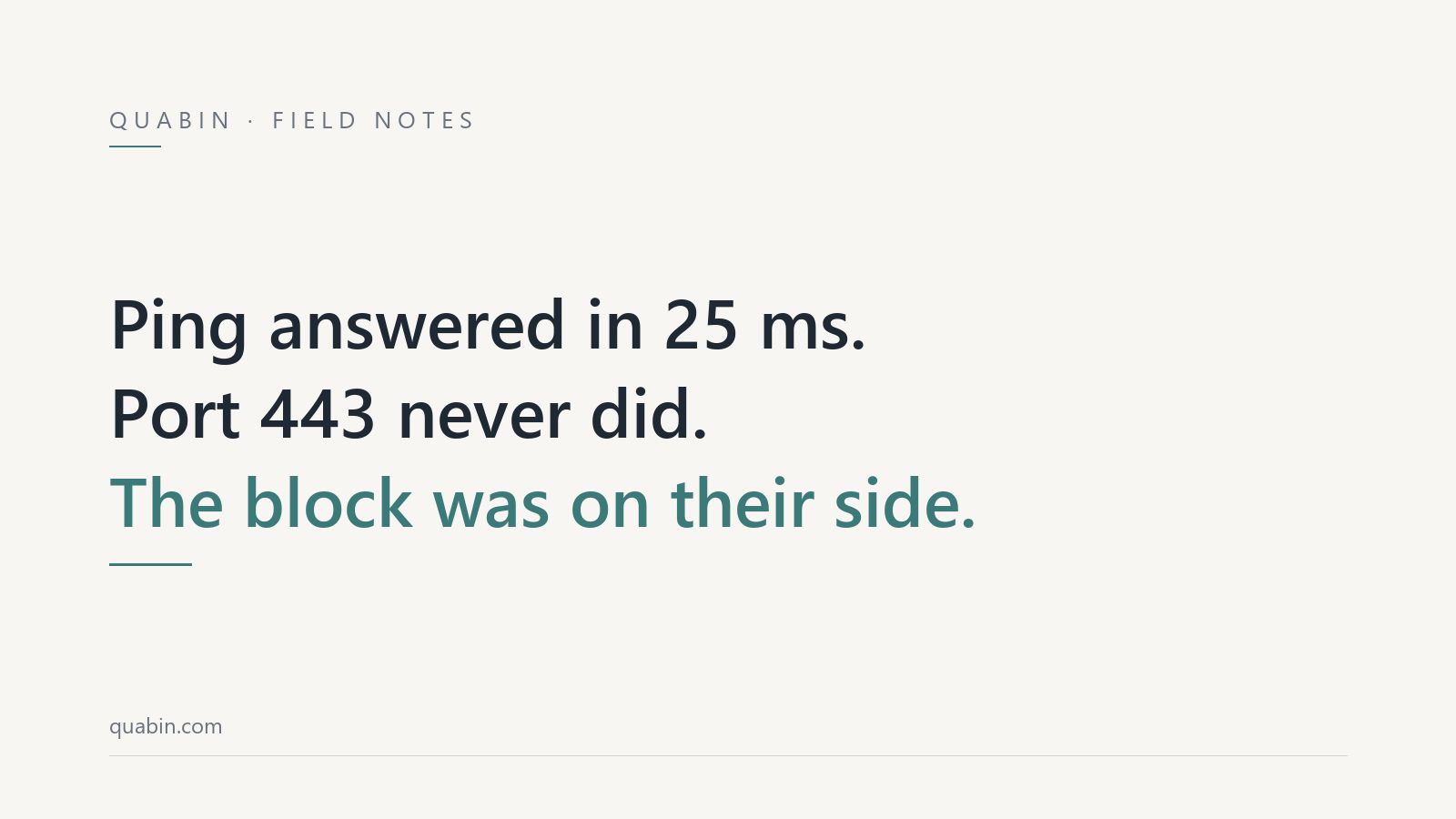
“We already did. Ping is fine. 25 milliseconds.”
They sent the screenshot. Clean replies, 22 to 30 ms, zero loss.
“So the network is fine,” they said. “It must be the server.”
I asked one question.
“Did you test the port, or only the ping?”
Silence. Then: “Ping is the network test.”
That’s the trap. Ping proves that ICMP packets get through. It says nothing about TCP on port 443 or 8443. A firewall can let one through and drop the other, and from the outside the two look like the same “network”.
What “Ping Works, TCP Fails” Actually Means
Every connection to a website goes through more than one gate. Ping uses one protocol. A browser or an HTTPS client uses another.
A successful ping only proves that ICMP echo packets reach the target and come back — it does not prove that any TCP port on that target is reachable.
The two paths look like this:
Client → their firewall → ISP → Cloudflare edge — ICMP echo: allowed
Client → their firewall → (dropped) — TCP SYN to port 443 / 8443: never arrives
Firewalls, web filters and IPS engines treat these very differently. ICMP is often allowed by a default rule so that support teams can “check connectivity”. Outbound TCP to the web is the thing a filter actually inspects: by category, by destination range, by reputation. So it is the thing that gets blocked.
Where I see this most often:
- Corporate networks with a web filter that classifies a destination range and drops it silently instead of showing a block page.
- Servers in a locked-down zone where outbound rules allow only named ports or named destinations, and the new endpoint was never added.
- An ISP or upstream filter that treats a whole shared IP range differently after some other site on it was flagged.
In all three, ping keeps working. That is why the ticket always says “the network is fine”.
Why the Usual Check Misses It
Here’s the part that trips people up.
When a site is slow or down, the reflex test is ping. It is fast, it is on every machine, and it gives a number. A number feels like proof.
But there are three things ping cannot tell you:
- Whether the TCP port is open from that network. A dropped SYN gets no answer at all. The client waits, retries, and finally reports a timeout. That is exactly what the Java service logged.
- Whether a filter in the middle is inspecting web traffic. Filters act on TCP sessions and TLS names. ICMP never touches that logic.
- Whether the server is healthy. Cloudflare answers the ping at its edge. Your origin is never involved.
The opposite mistake is just as common. The server team sees the site load from everywhere else and says “works for me”. Both sides are right about what they tested. Neither tested the one path that fails.
In this case I already had the most important fact: the site answered HTTP 200 from every other network I tried. The site was fine, Cloudflare was fine, and the origin was fine. Only one network failed. When only one network fails, look at that network first.
How to Actually Prove Where the Block Is
Step 1: Confirm the Site Works From Somewhere Else
Before anything else, prove that the server is not the problem. Run this from a network that is not the customer’s — your laptop, a cloud VM, a phone hotspot:
curl -sS -o /dev/null -w "%{http_code} %{time_total}\n" https://example.com:8443/Expected output is a status code and a time, for example 200 0.41. If you get 200 from two different networks, the site, Cloudflare and the origin are all answering. Write that down. It is the fact that ends the “it must be the server” argument.
Plain takeaway: one 200 from outside moves the search to the failing network.
Step 2: Test the Exact Port From the Failing Machine
This step is where most tutorials stop and where mine starts. Ping is not the test. The test is a TCP connection to the exact port the application uses.
On Windows, from the machine that fails:
Test-NetConnection example.com -Port 8443On Linux:
curl -v --connect-timeout 10 https://example.com:8443/A healthy result on Windows shows TcpTestSucceeded : True. On Linux, curl prints Connected to example.com and then the TLS handshake.
A blocked result looks like this:
- Windows:
PingSucceeded : TrueandTcpTestSucceeded : Falsein the same output. That one screen is the whole diagnosis. - Linux: curl sits on
Trying ...and ends withConnection timed out after 10000 milliseconds.
In our case the customer ran it on 443 and on 8443, against both Cloudflare IPs that the name resolved to. Every TCP test failed. Every ping succeeded.
This error is not a bug. It is the verification. A timeout with no reset, while ICMP to the same IP answers, means a device on the path is silently dropping the TCP packets.
Step 3: Test the Same IP Directly, Not Just the Name
DNS can return a different Cloudflare IP to different resolvers. Make sure you test the IP the failing client actually got:
nslookup example.comThen test each returned IP on the port, with the hostname still sent for TLS:
curl -v --connect-timeout 10 --resolve example.com:8443:<CLOUDFLARE_IP> https://example.com:8443/If every IP fails from their network and every IP works from yours, the target is not the variable. Their path is.
Step 4: Read What Cloudflare Sees When It Does Work
If the customer can reach any Cloudflare-proxied site at all — or once the block is lifted — this one request tells you which edge they land on:
curl -s https://example.com/cdn-cgi/traceLook at two lines: colo= is the Cloudflare data centre that answered, and loc= is the country Cloudflare thinks the client is in. In our case, once traffic flowed, the colo was in the customer’s own country and loc= matched it. That is a healthy, short path. I wrote a separate field note on what it means when those two do not match.
Step 5: Hand the Network Team One Precise Request
Change on their side (not yours): the fix is an outbound allow rule on the customer’s firewall or web filter.
The request I send is short:
- Allow outbound TCP 443 and 8443 from the service’s host to Cloudflare’s published IP ranges, listed at
https://www.cloudflare.com/ips-v4(and the IPv6 list if they use IPv6). - At minimum, the range the site resolves to today. In this case that was inside
188.114.96.0/20. - Check the web filter and IPS categories for that range, because a category block drops the session just like a firewall rule does.
Then rerun Step 2 from the same machine. TcpTestSucceeded : True is the only closing evidence I accept.
The “San Francisco” Question
Once the test pointed at their network, a second worry arrived.
“We looked up the IP. 188.114.x is in San Francisco. Why is our traffic going to America?”
It is not.
Cloudflare’s address space is anycast. The same IP is announced from hundreds of data centres at once, and every client reaches the one closest in network terms. Both IP pools the name resolved to belong to Cloudflare’s own network, AS13335.
A geo-IP lookup does not know any of that. It returns the registry address of the block owner. For Cloudflare, that is a head office city. It tells you who owns the range, not where your packets go.
The real answer is the trace from Step 4. colo= showed an edge in the customer’s own country. That is where the traffic actually went.
One more thing people ask: “Can we make Cloudflare give us a different IP pool?” No. Which edge IPs a resolver gets is Cloudflare’s decision. That is exactly why the allow rule must cover Cloudflare’s published ranges, not one IP copied from today’s DNS answer.
Why a VPN Client Is Not the Fix
The quick suggestion in these tickets is always the same: “Install the Cloudflare WARP client, it goes around the block.”
Sometimes it does. But for this case it is a workaround, not a fix:
- The same filter may block the VPN client too. Many corporate filters treat consumer VPN apps as a category.
- An always-on service needs a path that survives reboots, updates and the next policy push. A client app on one host is the weakest link in that chain.
- It hides the real rule instead of fixing it. The next service on the same network hits the same wall.
The fix is the allow rule from Step 5. The VPN client is only for proving the theory in five minutes if the network team is slow to respond.
The Checklist I Run When Only One Network Fails
- Works from outside?
curl -sS -o /dev/null -w "%{http_code}\n" https://example.com/from two other networks. - Exact port from the failing host?
Test-NetConnection example.com -Port 443— readTcpTestSucceeded, notPingSucceeded. - Every resolved IP?
nslookup example.com, thencurl --resolveper IP. - Timeout or reset? A timeout means a silent drop on the path. A reset means something answered and refused.
- Which edge, which country?
curl -s https://example.com/cdn-cgi/trace— readcolo=andloc=. - Allow rule covers the published ranges? Compare it with
https://www.cloudflare.com/ips-v4. - Closing proof? The same Step 2 command, from the same host, now showing
True.
Plain takeaway: every item tests the path the application really uses. None of them is ping.
What I Tell Every Customer Now
When a ticket says “your site is down for us”, I no longer start with the server. I ask one question first:
“Have you tested the exact port from the machine that fails — not ping, the port?”
If the answer is yes, with TcpTestSucceeded : True, we look at the application together. If the answer is “ping is fine”, we’re not done yet.
I write about the questions I ask in real customer rooms — the ones that change architectures and surface the problems no one else noticed. If you found this useful, drop your email below and I’ll send the next one when it’s ready.
FAQs
Why does ping work but the website times out?
Ping uses ICMP, while a website uses TCP on port 443 (or another HTTPS port such as 8443). A firewall, web filter or ISP can allow ICMP and silently drop TCP to the same IP. Test the exact port with Test-NetConnection host -Port 443 or curl -v instead of ping.
How do I prove the block is on the client’s network and not my server?
Get an HTTP 200 for the site from two other networks, then run a TCP test on the same port from the failing machine. If the site works everywhere else and only that network times out on TCP while ping succeeds, the drop is on the client’s path.
Why does a Cloudflare IP show up as San Francisco in a geo-IP lookup?
Cloudflare uses anycast, so the same IP is served from hundreds of data centres. Geo-IP databases show the registry address of the block owner, not where traffic goes. Run curl -s https://example.com/cdn-cgi/trace and read colo= to see the edge that really answered.
Which IP ranges should a firewall allow for a site behind Cloudflare?
Allow outbound TCP on the ports the application uses to Cloudflare’s published ranges at cloudflare.com/ips-v4 (and ips-v6 if IPv6 is used). Do not allow a single IP copied from today’s DNS answer, because Cloudflare decides which edge IPs resolvers receive and they can change.
Is the Cloudflare WARP client a fix for a blocked Cloudflare range?
No, it is a workaround. The same filter may block the VPN client, and an always-on service should not depend on a client app on one host. The fix is an outbound allow rule on the client’s firewall or web filter.